On Android phones, the MyStopsAUTO app can be downloaded and
installed directly from the Google Play store. For iPhones,download MyStopsAUTO
from the App Store .
Special
Notes
(1) An older Android phone or tablet may require updating
of Google Play Services before MyStops
AUTO can be downloaded and installed.
(2) Before downloading the
Android version of MyStopsAUTO from our website, on your phone/tablet, go
to Settings-> Security-> and check the box next to "Unknown Sources". This will
allow the app to install. MyStopsAUTO is 100% safe to use.
(3)
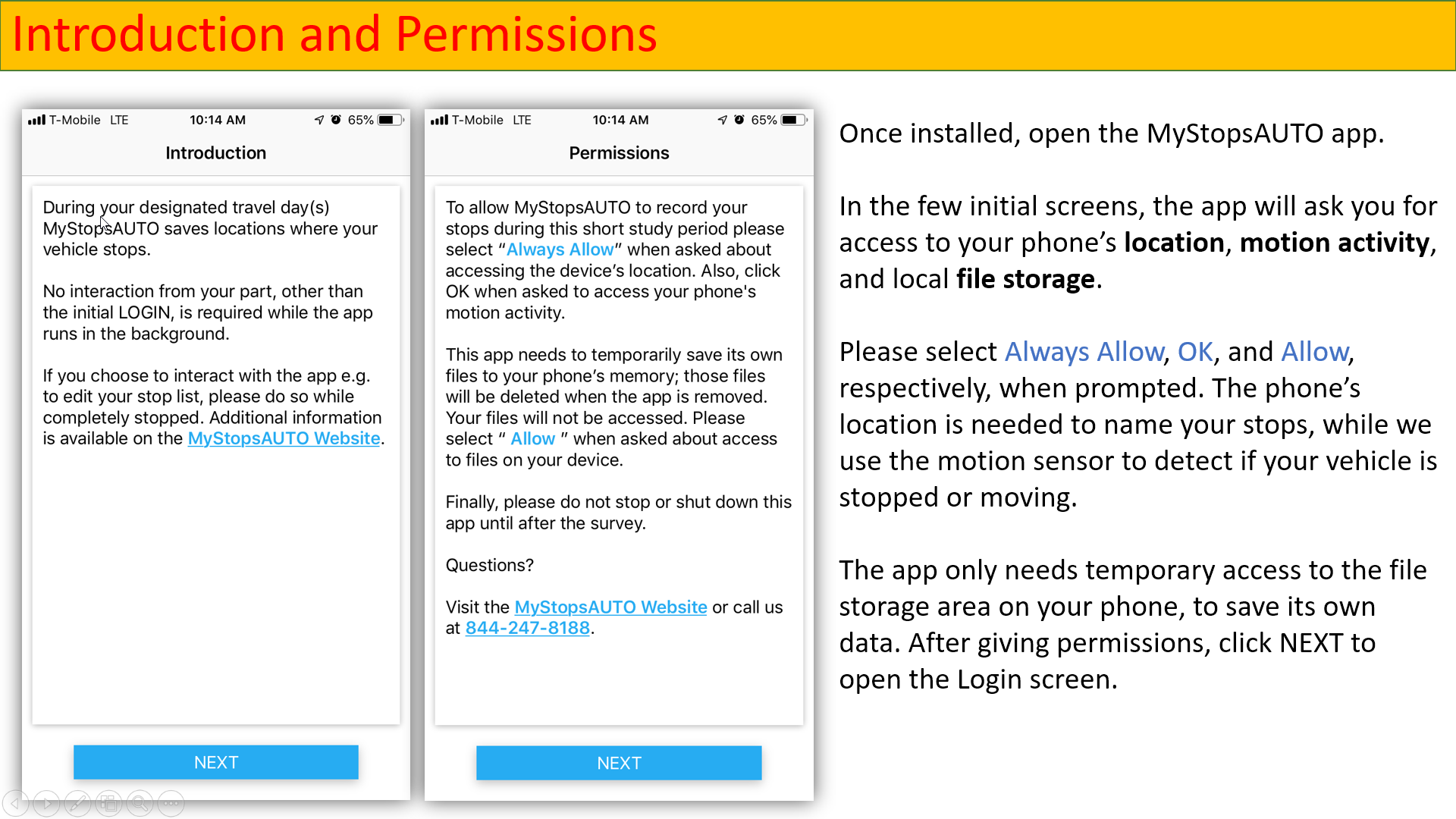
During or after installation, MyStopsAUTO will ask for your permission to
"access photos, media and files" - this is needed to save (temporarily) travel diary
data to your device. MyStopsAUTO will not access any personal data or photos
on your device.
(4) MyStopsAUTO can be located on your
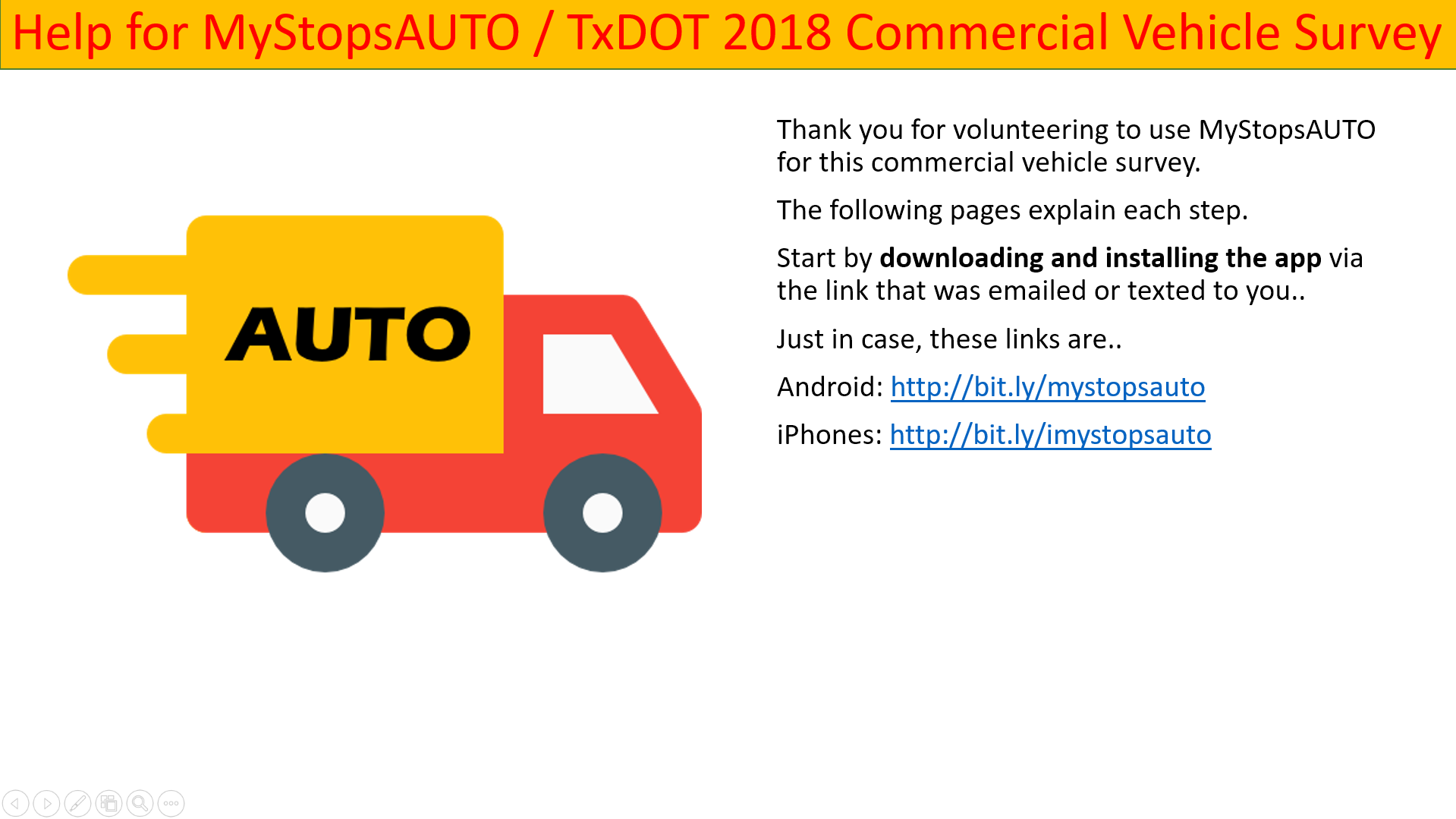
device by looking for its icon, See the the upper left hand corner of this page (a
little truck).
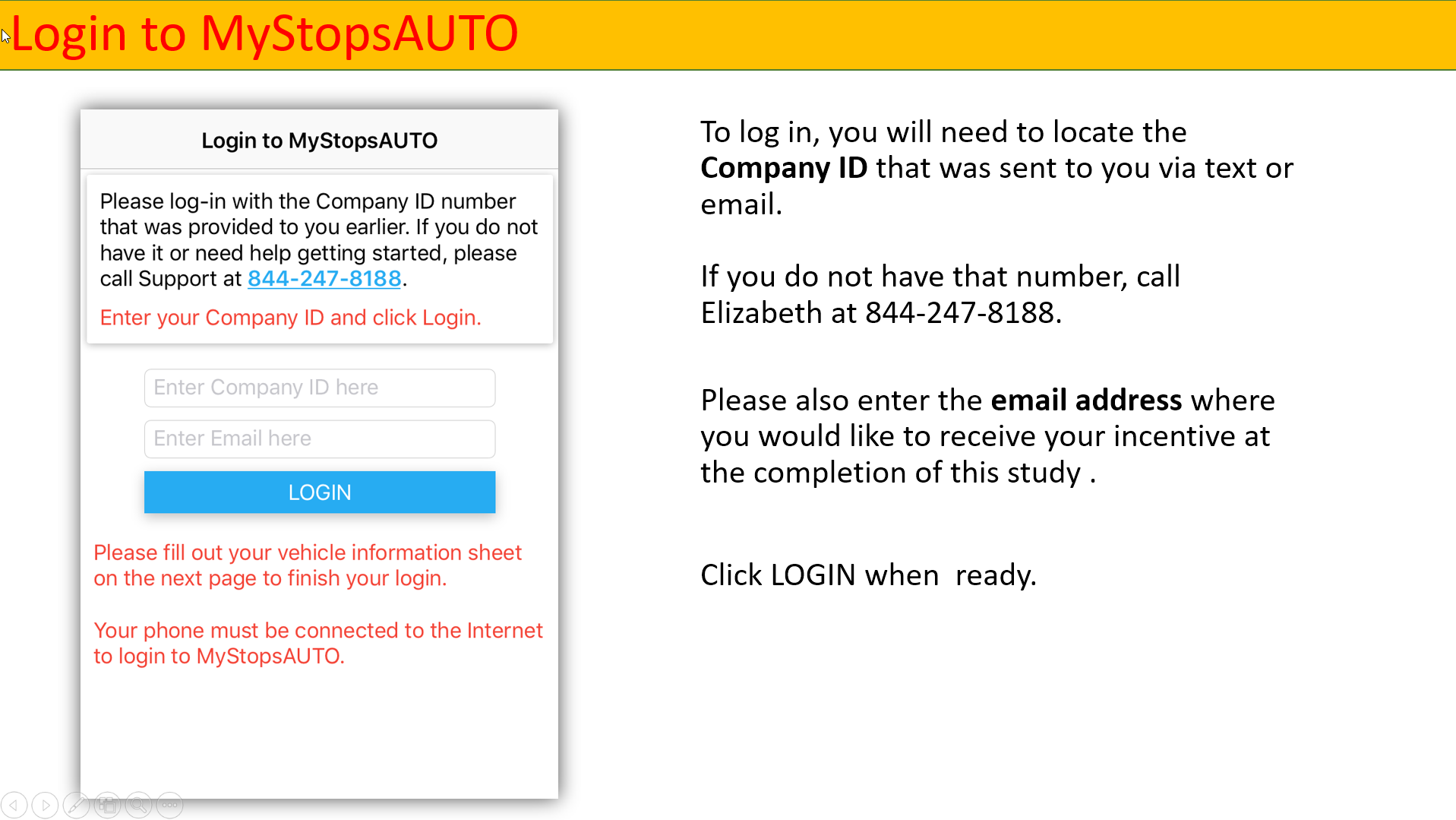
Start MyStopsAUTO and login by entering the PIN number that
was provided to you. The PIN is your Company ID used in this study. After entering ther
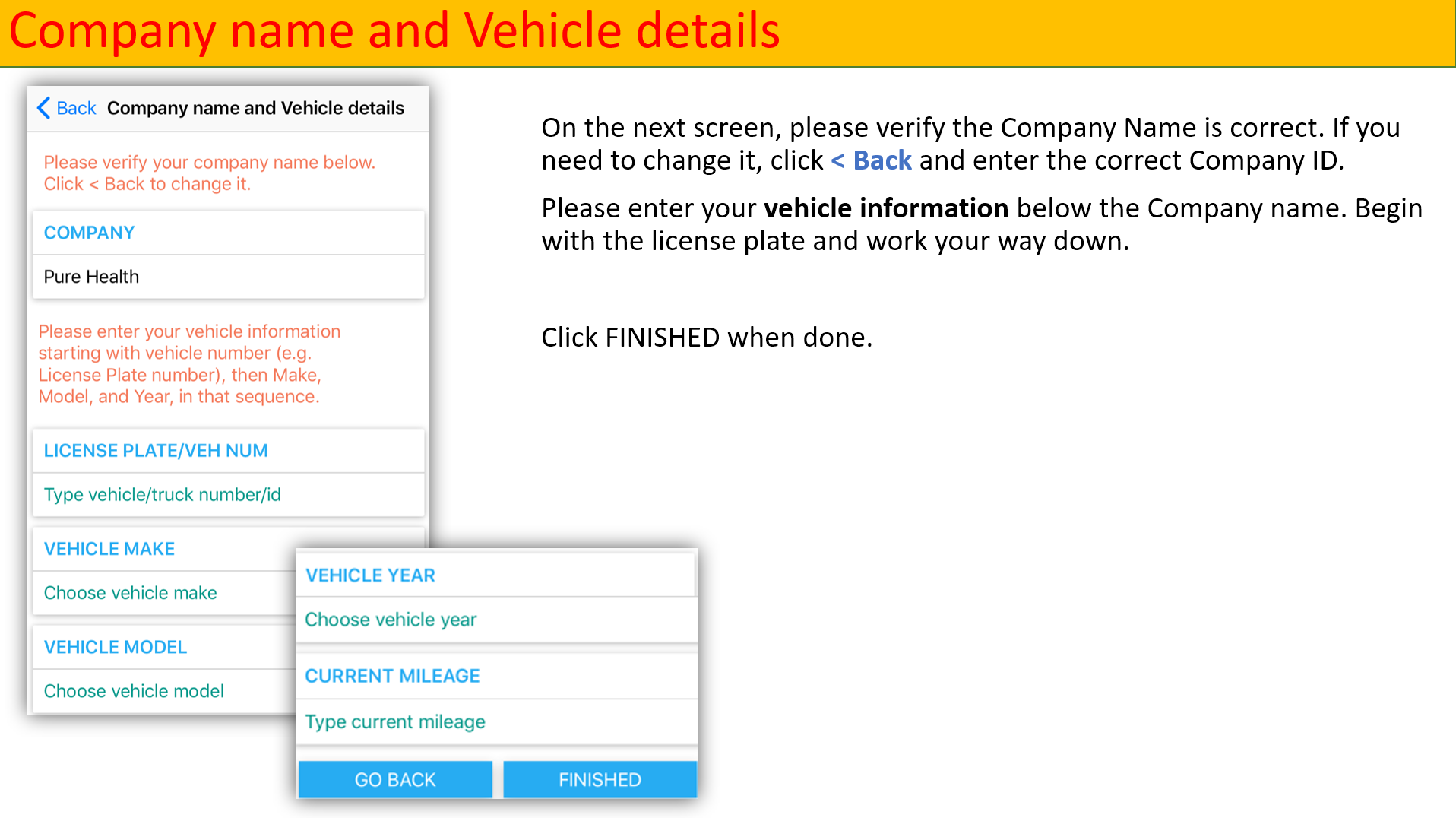
PIN number, your Company's name will be shown. Then provide your vehicle info and
you are all set - the app will run in the background for 24-72 hours and can be then
un-installed.
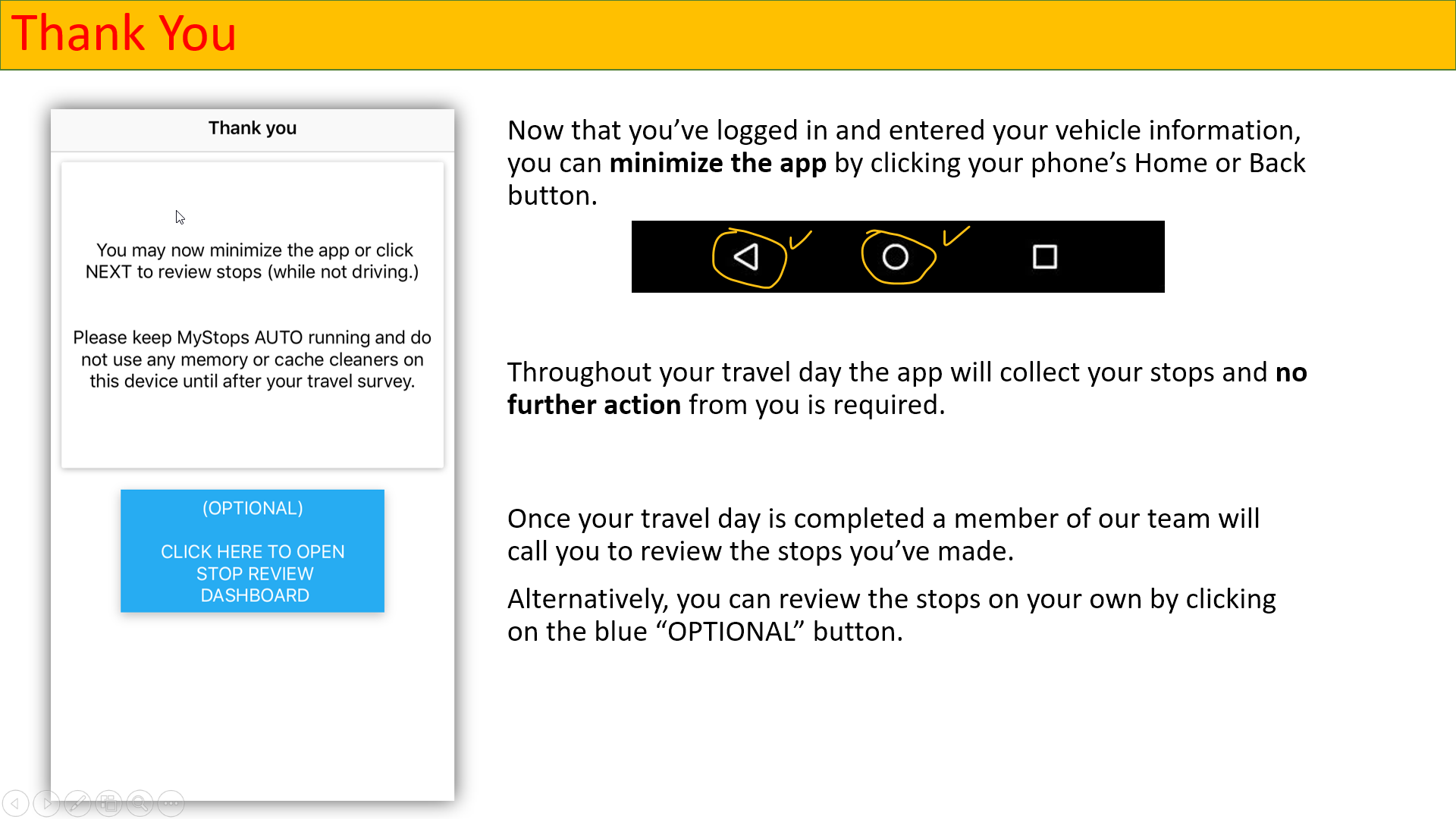
(Optionally, you can review your stops - while not
driving - but that's not required. We will call you after your travel day to
complete the process.)
Special Notes
(1) Please
keep your Wi-Fi turned ON, even outdoors, to help keep the collected stop data
accurate.
(2) Allow your phone to have the "Location Services" turned
ON, typically by clicking through these menus:
Settings-> Location->
On.
(3) Keep your phone plugged into a charger whenever possible, MyStopsAUTO uses
GPS and may cause your device battery to drain a little faster than
normal.
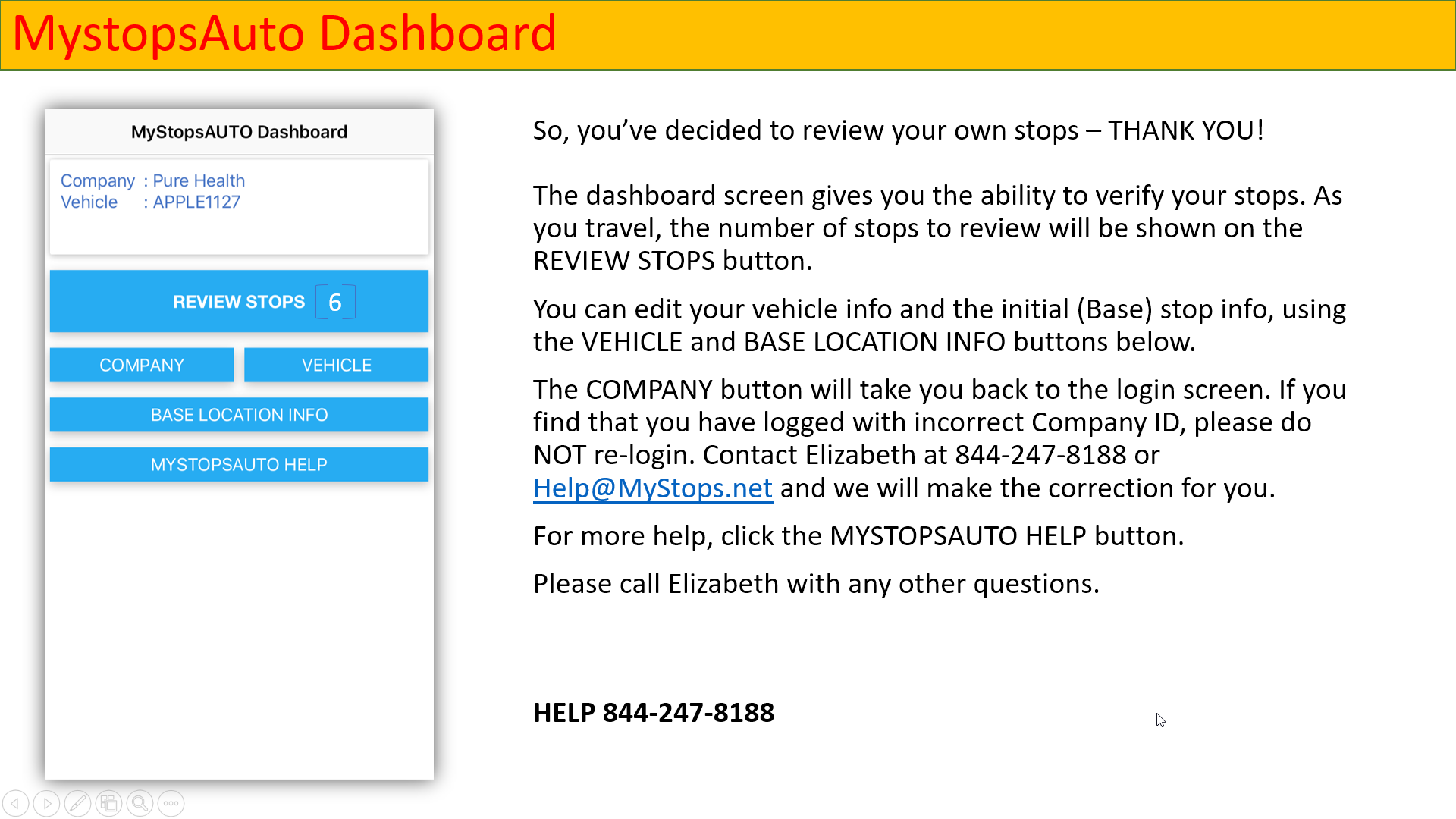
MyStopsAUTO will run in the background, detecting the stops
you make throughout the day. If/when convenient, you may open the app to confirm
stops and answer a couple of questions about each stop.
Special
Notes
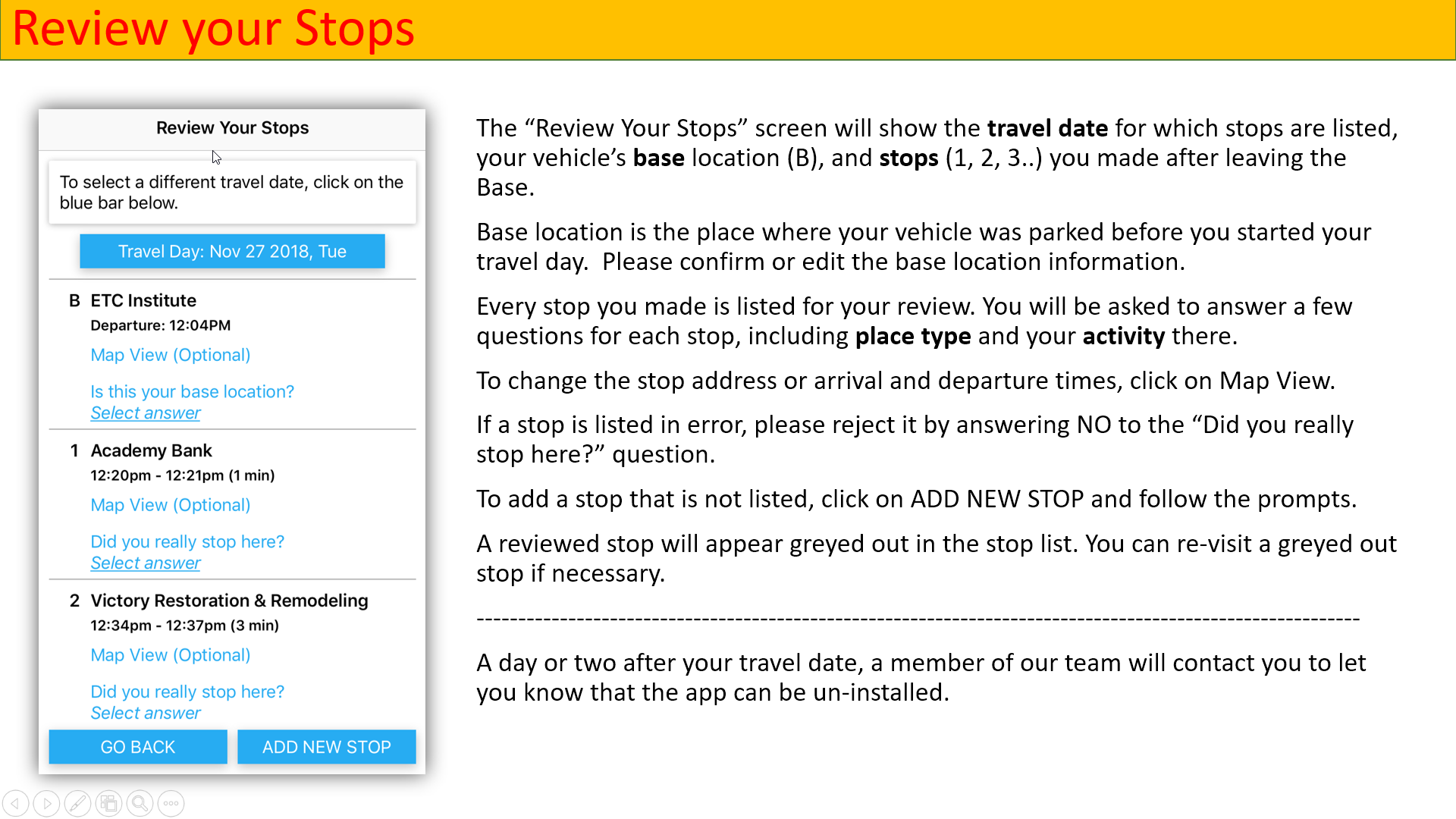
(1) Every time one or several stops are detected, MyStopsAUTO may
insert a note into your phone's Notifications, so that you can know that there are
stops waiting to be confirmed. If time permits and only when you are not driving, you
may click the MyStopsAUTO icon to review / confirm as many stops as you
can.
(2) Note that it may take up to three (3) minutes for a stop to
appear on the stop list.
(3) If you prefer to review your stops on a
regular-size computer screen, go to MyStops AUTO Review. Here you can
view all of your stops on a map and easily make changes, approve stops, and add new
stops.